Computing
How to Connect to a Linux Server via SSH (Aurora Example)
macOS
- Open a Terminal: Click on Spotlight (magnifying glass icon) at the top right of the screen, type “terminal,” and press Enter.
- Enter the command to connect to the server:
ssh <username>@aurora.nceas.ucsb.edu
(Replace<username>with the username you use on Aurora)- If this is the first time connecting to the server, type
yesto accept the server’s SSH key.
- Enter your password:
Note: When you type your password, there is no visual feedback (such as •••••••••) to indicate that you are typing. This is a security feature.
Windows
- Download and install PuTTY: Download PuTTY here.
- Enter the server name: Use
aurora.nceas.ucsb.edu.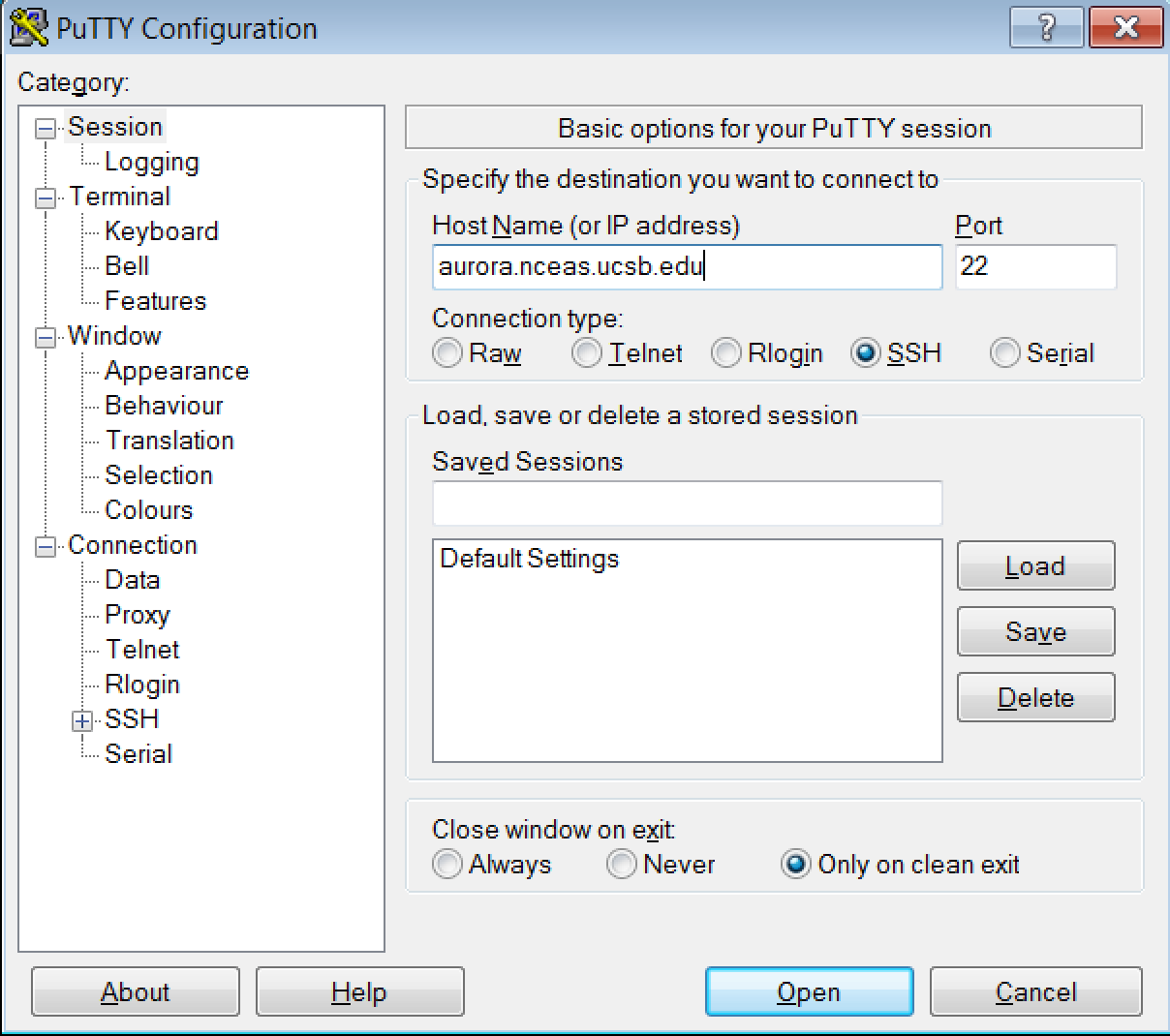
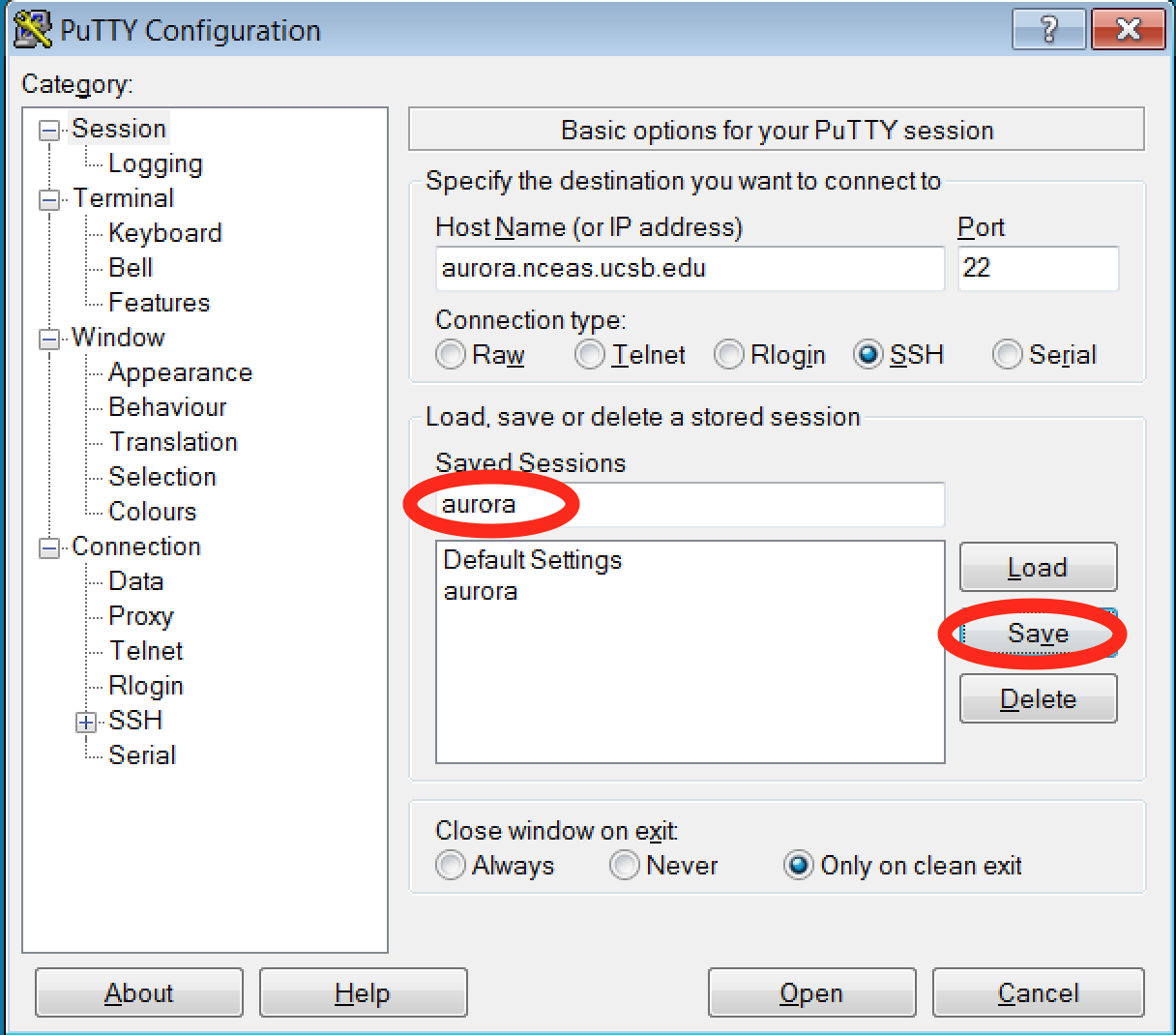
- Save the session for future use: Give it a name (e.g., “Aurora”) and click Save.
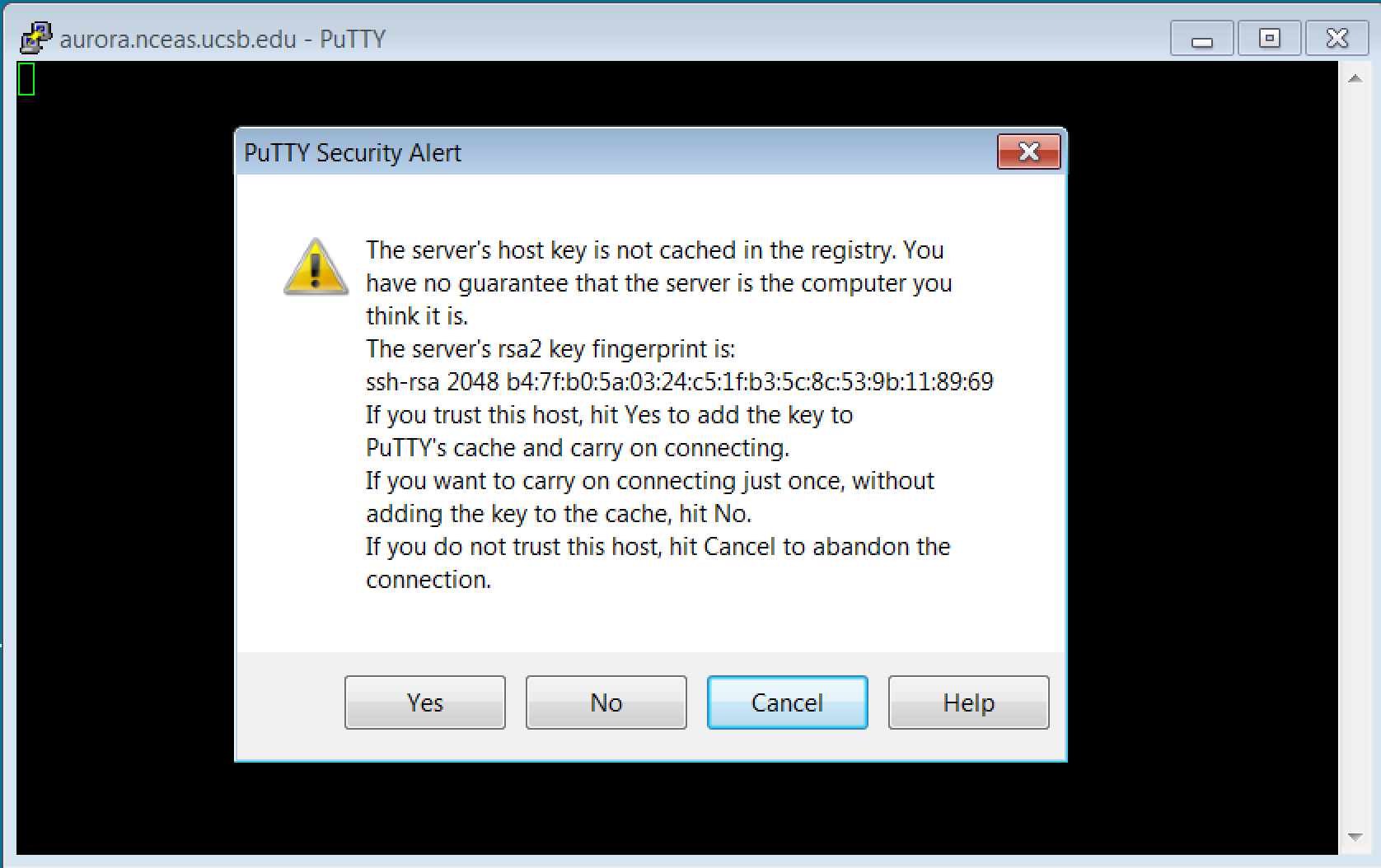
- Connect: Click Open. If a security alert appears asking to accept the server’s key, click Yes.
- Log in: Enter your username and password.
Note: Like the Linux terminal, PuTTY will not show any characters while you type your password.
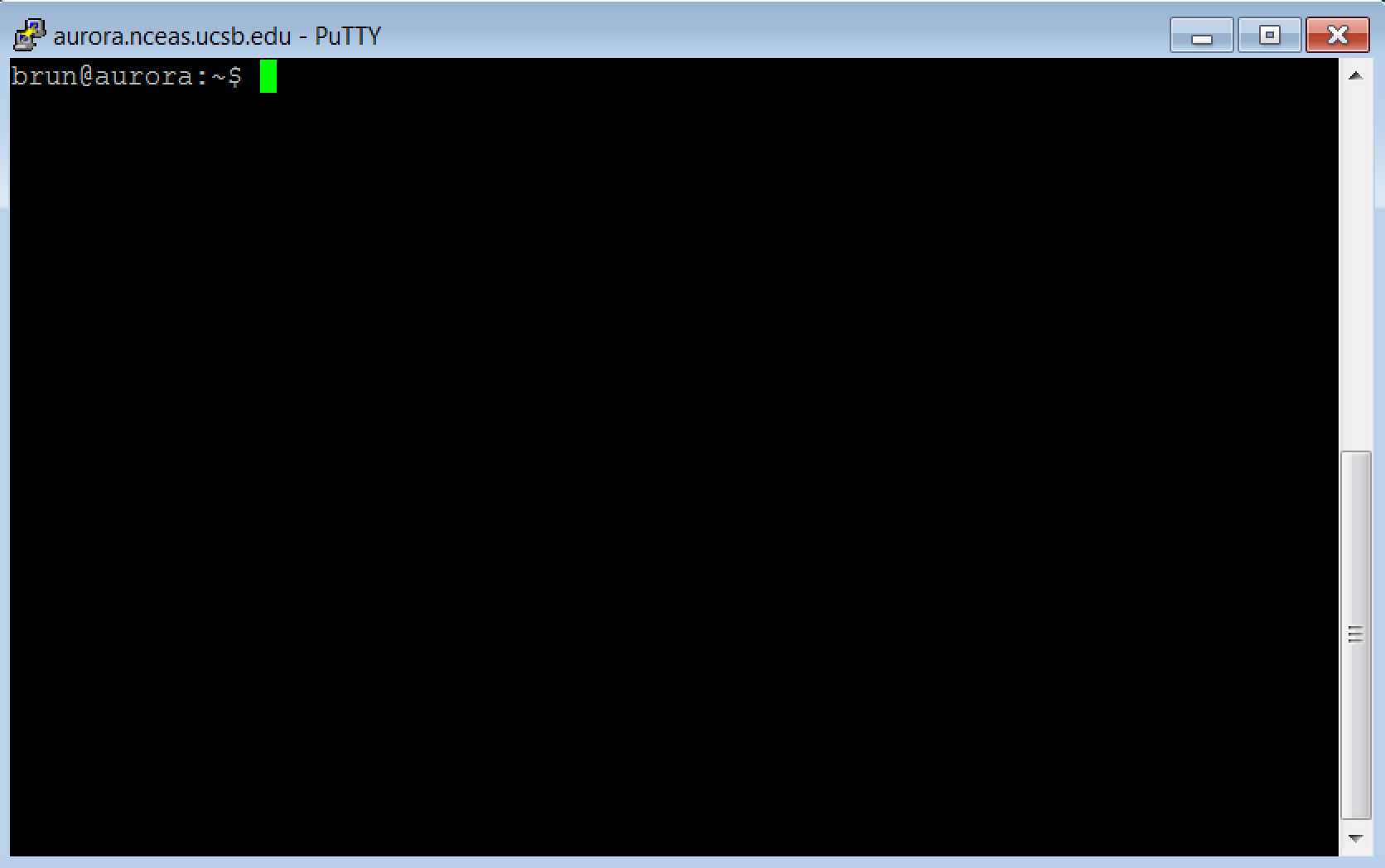
Once successfully connected, you should see a window similar to the one below:
Ubuntu Linux
- Open a Terminal: You can usually do this by pressing
Ctrl+Alt+T. - Enter the command to connect to the server:
ssh <username>@aurora.nceas.ucsb.edu - Accept the Key: If this is the first time connecting, type
yesto accept the server’s SSH key. - Enter your password:
Note: There is no visual indication that you are typing your password.
Connecting with X11 Forwarding
X11 forwarding allows the use of GUI applications over the network. However, X11 can experience performance lag or lost sessions. For a more stable experience, we recommend using x2go instead.
Ubuntu Linux
Use the -Y flag when connecting:
ssh -Y <username>@aurora.nceas.ucsb.edu
macOS
- Start your X11 application (e.g., XQuartz).
- An
xtermwindow will open. From inside that window, connect to the server:ssh -Y <username>@aurora.nceas.ucsb.edu - Launch your program (e.g.,
matlab).